Eliminating Dead Zones: Your AC1200 Dual-Band Extender Setup Guide
Bringing an AC1200 Wi-Fi Extender into your home is a highly effective way to banish internet dead zones. Because AC1200 devices utilize dual-band technology—broadcasting on both the 2.4GHz and 5GHz frequencies—you get a perfect balance of range and speed. Whether you are streaming movies upstairs or taking video calls in the home office, setting up your extender is a breeze.
Here is how to seamlessly integrate the AC1200 extender into your existing wireless network.
Method 1: The One-Touch WPS Setup
If your primary router features a Wi-Fi Protected Setup (WPS) button, you can bypass passwords and web browsers entirely for a connection that takes less than two minutes.
Initial Placement: Plug the AC1200 extender into a power outlet in the same room as your main router to ensure a strong initial handshake.
Power Up: Wait for the Power LED indicator on the front of the extender to turn solid green or blue.
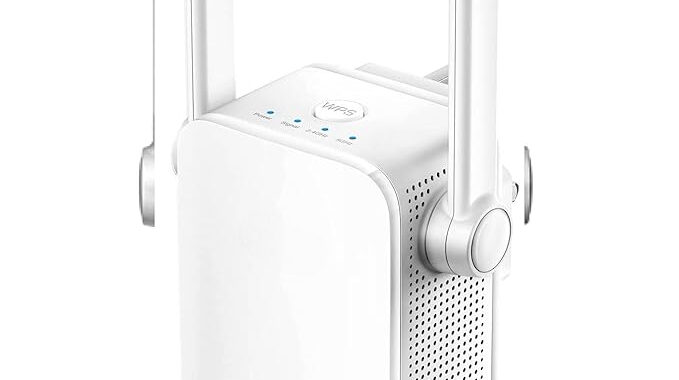
Trigger the Extender: Press the WPS button on the extender for about two seconds. The WPS LED will start flashing.
Trigger the Router: Within two minutes, press the WPS button on your main Wi-Fi router.
Confirm Connection: Watch the Signal or Router Link LED on the extender. Once it turns solid, your extender has successfully cloned your router’s network credentials.
Method 2: Web Browser Configuration
If your router does not have a WPS button, or you simply prefer having manual control over your network settings, the web browser method is your best route.
Plug It In: Connect the extender to a wall outlet near your router and wait for it to fully power on.
Connect Your Device: Open the Wi-Fi settings on your smartphone, tablet, or laptop. Locate and connect to the extender’s factory default network, which usually contains AC1200 or EXT in the name.
Access the Portal: Open a web browser and type the default IP address (commonly 192.168.0.254 or 192.168.1.250) or the setup URL provided in your manual into the address bar.
Follow the Wizard: Create an admin password for the extender, select your home router’s 2.4GHz and 5GHz networks from the scanned list, and enter your main Wi-Fi password.
Apply Settings: Save your configuration. The extender will reboot and begin broadcasting your newly extended dual-band network.
Crucial Placement Strategies
The Halfway Rule: For the best performance, permanently plug the extender into an outlet that is exactly halfway between your main router and your Wi-Fi dead zone.
Check the Indicator Lights: Most AC1200 extenders feature a smart signal LED. If the light is red or amber, move the extender closer to the router. If it is green, you have found the optimal spot.
Avoid Interference: Keep the device out of cramped cabinets and away from large metal appliances, cordless phones, and Bluetooth devices that might disrupt the signal.