Taking Wi-Fi 6 Outside: Your AX1800 Outdoor Extender Setup Guide
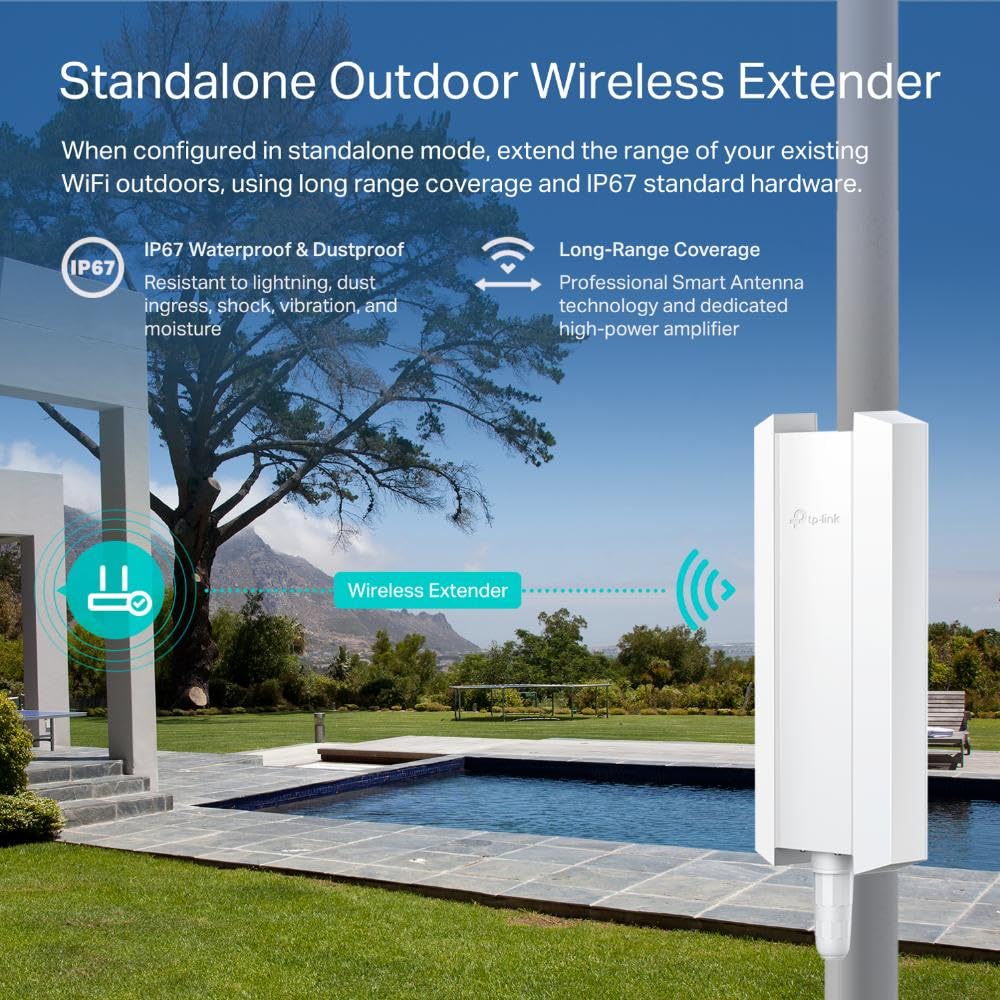
Expanding your high-speed internet to the backyard, garage, or patio is a complete game-changer for outdoor entertainment and security cameras. The AX1800 Outdoor Wi-Fi 6 Extender brings ultra-fast speeds and heavy-duty, weatherproof performance to your exterior spaces. Because it is designed to withstand the elements, it utilizes a Power over Ethernet (PoE) connection rather than a standard wall plug.
Here is your comprehensive guide to getting your outdoor network up and running:
Phase 1: Physical Assembly and PoE Connection
Before heading outside to mount the device, it is best to configure it indoors.
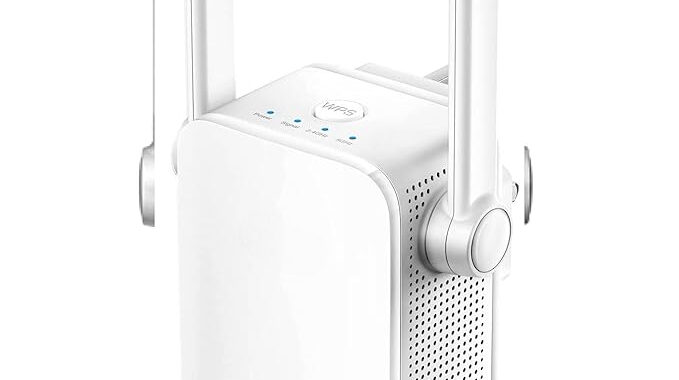
Attach the Antennas: Securely screw the provided antennas into the top connectors of the extender. Ensure the waterproof rubber O-rings are firmly in place to protect the device against rain and moisture.
Wire the Injector: Plug the included PoE injector into an indoor electrical outlet. Use a standard Ethernet cable to connect your main Wi-Fi router to the LAN port on the PoE injector.
Connect the Extender: Run an Ethernet cable from the PoE port on the injector to the main internet port on the bottom of the AX1800 extender. This single cable delivers both internet data and electrical power to the outdoor unit.
Phase 2: Network Configuration
With the hardware connected, you can now link the extender to your home network.
Power Up: Wait a few minutes for the AX1800’s LED indicators to turn solid, signaling it is fully booted and ready for configuration.
Connect to Default Wi-Fi: On your smartphone, tablet, or laptop, open your Wi-Fi settings and connect to the extender’s factory default network (often labeled as AX1800_Setup or similar).
Launch the Interface: Open a web browser and enter the default IP address (commonly 192.168.10.1 or the specific setup URL found in your manual) to access the login page. Use the default factory credentials to sign in.
Select Extender Mode: Choose “Repeater Mode” or “Extender Mode” from the main dashboard. The device will automatically scan for nearby wireless networks.
Link and Secure: Select your home router’s Wi-Fi network from the list, input your current password, and create a new name (SSID) for your outdoor network. Save your settings and wait for the system to reboot.
Phase 3: Mounting and Optimization
Mount High and Clear: Use the provided zip ties or mounting bracket to attach the extender to a pole or exterior wall. Aim for a height of 6 to 8 feet off the ground for the best range.
Angle the Antennas: Position the dual antennas in a “V” shape or straight up to ensure maximum signal dispersion across your yard.
Weatherproof the Seal: Always tighten the waterproof cable gland around the Ethernet cable at the base of the unit to completely prevent moisture ingress.